Where should we send your special Sqribble coupon code?
We value your privacy and will never spam. You can unsubscribe anytime.


Have you ever had problems with your WordPress-based website? WordPress powers over 40% of all websites, but it does not mean it’s perfect. I mean, perfect in technical sense, like bulletproof in every scenario. There are tons of possibilities for something to go wrong, without even counting numerous vicious attempts on your digital belongings. One of the most important things you can do is to carry out certain WordPress maintenance tasks regularly. This way, you can definitely lower the chance of things go wrong.
If your website is your money site, where you collect orders or subscribers, it’s even more critical to do WordPress maintenance properly. Let’s see the 12 crucial WordPress maintenance tasks you should know about.
As mentioned, WordPress powers up almost half of all the websites on the planet. This means a huge user base, but the point is elsewhere. WordPress would never become so popular if it wasn’t so user-friendly, easy to adopt, and able to do just about anything. Yes, you can create a simple blog with three or four pages, but you can also create a full-size app for whatever you need, and everything in between.
Of course, it’s impossible for a single software to be this universal by itself. This is where WordPress is tha master of the game. It includes an open architecture, which makes it possible to plug in any functionality you want, which is done by software snippets called plugins.
Nowadays, there’s a plugin for practically anything you can think of. If you need something specific, go check the wordpress.org and chances are you’ll find it within minutes. What you’ll find is a repository of thousands of free plugins that you can use immediately. Of course, the point of any business is earning – so most of these will offer the basic functionalities, while trying to sell you the premium version with full functionality. There’s nothing wrong with that, without it there would not be as many available.
The point of all this in the context of WordPress maintenance is exactly that – an open architecture software is equally open to bad coding, miscevous software and such things. Also, using many plugins on a site (which you just might need, depending on the wanted functionality) is just calling for clashes, because some plugins just don’t work that well together.
Not to mention the updates; WordPress is updating wuite frequently, and to follow all the new tricks, plugin have to be updated too. In other case, your site may quickly become vulnerable to attacks and simple errors.
And there you go – I sometimes wonder how it even works, really.
There’s hardly a firm rule for this – as you can expect with almost half of the world’s websites, there’s just too many factors that rule that.
But speaking generally, this should be the guidelines.
There are also a few breakpoints that break the rules above and call for immediate action, and these could be any
These are the main factors that might break everything and leave you searching for that backup file you’ve created years ago.
The most important tasks are as follows.
Let’s deal with them one by one with a bit more details.
Passwords are the first line of defense against hackers or anyone trying to get unathorized access to your website. They should always be hard to guess, consisting of alphanumerical characters, mixed with special characters (like #, $, !, etc). Don’t use passwords like “123456me”, for heaven’s sake… I suppose someone already told you that.
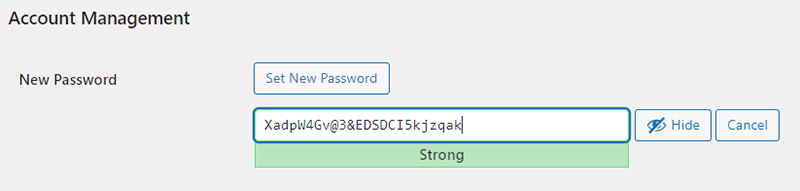
As a very basic WordPress maintenance task, every WordPress security expert will recommend changing your WordPress passwords regularly, which includes passwords for your WordPress admin area, any FTP or SSH accounts, as well as your WordPress database password.
When using strong passwords, it’s hard if not impossible to remember them – I know, I have several hundred (I’m a nerd 🙂 ). You can use old school methods for that, like notebook or a hidden text file somewhere, but there are also tools that offer this functionality. One of them is offered by Google itself and you probably know it if you’re using Chrome. For EU users, Google is a bit problematic because of the GDPR laws, but there are also EU solutions for that, like PCloud Pass, which is build in Switzerland and conforms to the highest EU security standards.
It has a – limited – free version, but also unlimited lifetime (around $150) and is a good solution in every way, much better than Google IMHO.

A good backup plugin is something you just need to have in your toolbox. If something goes wrong, it should be easy to get your website back up and running, not costing you hours or even much more if recreating it all.
It’s really something I’m not considering negotiable, and if you’re not using it you’re actually playing with fire. It’s just one of the basic and crucial WordPress maintenance steps.
There are numerous backup solutions on the market, both free and premium.
For a start, free solutions can do a good job; for instance, UpdraftPlus can be a life-saving thing to have. But, in order to have more options like saving to cloud accounts, you’ll need a premium plugin. Personally, I’m using UpDraftPlus Premium, and I have a license that allows me to use it on 35 sites. This costs me $80/year, which might seem high – but it’s like an insurance policy. It all seems pretty much unnecessary, right until the moment it’s not. I’ve only used “the resque” scenario twice in over 5 years, but it saved me so much pain and trouble that I’m not even considering cancelling it.
I’ve used another functionality of the paid UpDraftPlus plugin much more often: Website Migration. If needed (and it’s needed if you have more than a few websites or even doing it for clients), you can migrate the whole site to a new domain within minutes – everything done for you. It never failed me so far, so I would highly recommend it – immediately.

Read more about WordPress Backup plugins: 7 Best WordPress backup plugins compared
WordPress has a built-in system to manage updates for WordPress core, plugins, and themes. You should always update WordPress to use the latest version, as well as keep all your plugins and themes updated.
The updates will mostly consist of security updates, which makes it so important, but then every now and then a functionality will be altered or added. This brings us to the WordPress Backups issue, because larger updates can easily create problems if something is not properly set up.
There are certain situations when you may miss an update. For example, when a premium plugin or theme’s license expires, it may fail to check for an update. In this case, you can always renew your license, but you can also keep using it without any more updates. Keep in mind that this poses a serious secutiy risk and is not advised.
You can also go to the WordPress Updates page to manually check for theme and plugin updates. Review all your installed plugins and themes to make sure that they are running the latest version. If they are not, make sure to document a reason why you are choosing not to update. It might be important some day if problems arise.
WordPress database is based on MySQL server and includes all your content, comments, settings and everything you see on your website. Sadly, it has a tendency of growing over time. This is partly due to WordPress not being really good at cleaning, because it somehow tends to remember everything. Another part of the guilt goes to plugins and themes, because not all are built to tidy up after deinstallation or deactivation. As a consequence, the WordPress database can easily grow to unbelievable sizes.
When the database gets cluttered, it becomes slower; as a consequence, your entire website is getting slower, and we all know what that means for conversions. It may even fail at some point, if you’re anyhow limited on the size of databases, which depends on your hosting. Most of the cheaper shared hosting solutions have limits, and you don’t want to reach them – the site will become iresponsive, behave erraticaly, and you’ll start losing your customers and your nerves.
When any of these happen, it’s already a bit late, but not too late to perform a database optimization. It’s a complicated thing and practically cannot be done by hand (unless you’re a bit of a magician), but there are plugins for that. Of course there are.
One of the best free plugins that I’m also using is called simply WP Optimize, and it comes from the same team as UpdraftPlus (Team Updraft). It’s very easy to use, you actually have to install it from the WordPress repository and then click a button or two and wait a few minutes. The results are sometimes shocking, because you see your database size dropping from 3000MB to 135MB (I made that up, but still…). You’ll also notice an instant speed-up of your website.
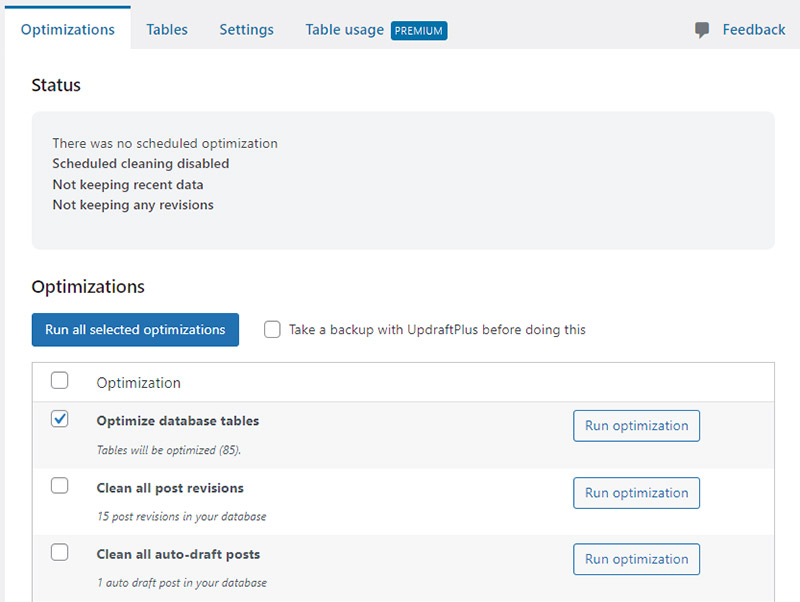
The plugin also has a premium version, which enables you to do all optimizations in the background and many more things. If you use the free version, like I do, there’s a little drawback though.
For instance, it does not do well with LiteSpeed server and LiteSpeed Cache plugin. If you have your website hosted like that, you’ll get a warning like this:
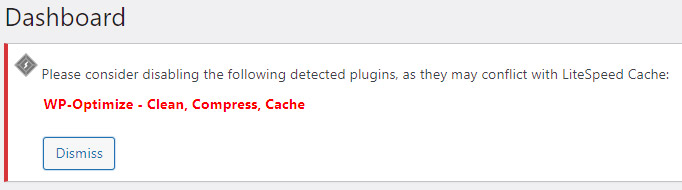
To solve this, I’m keeping the plugin deactivated and I activate it only when it’s time for the general WordPress maintenance. So I have to activate the plugin and start the database optimization process manually, deactivating the plugin when it’s finished.
If that’s not the dealbreaker for you, I warmly suggest you install the WP Optimize plugin asap.
Any WordPress form builder plugin (like WPForms) makes it super easy to create beautiful forms on your website. You can use them to collect subscribers to your newsletter, grab discount coupons or download free stuff.
But when a misconfiguration on your WordPress hosting server or your email service provider happens, sometimes these forms may suddenly stop sending emails to the recipients. It may not be visible at first, and you could actually miss many user interactions before you notice the problem.
That’s why you need to check all forms on your website to make sure that they are working properly in any configuration. If a form is not working, you must immediately check for a solution to the problem.
If you’re a Divi user, I have an idea for you.
I’ve been a long time user of Divi, and one thing I have always missed is a simple save-to-database functionality. It’s very important, because normally you would not get notified of a form not sending you emails. If they’re saves into a database, however, you’ll find the reminders right inside the dashboard.
This is where a plugin from Pee Aye Creative comes into play; it’s called Divi Contact Form Helper and it does that and adds many additional functionalities, design options included. It’s probably best to check it right on the plugin’s site, if you’re interested.

As a best practice, because WordPress email sending can be really tricky sometimes, I always recommend using the WP Mail SMTP plugin because it has email logging, and it will alert you when an email fails to send.
And yes, you can easily configure Divi Contact Form Helper to utilize the new SMTP settings in minutes.
The 404 error happens when the URL does not exist. For instance, when someone is clicking an old link that should display the post you had but deleted recently, they’ll get a 404 error, informing them that the page does not exist.
It’s a bad practice to allow that to happen – just think of it: how do you, as an Internet user, feel when you’re searching for something, find a link finally only to see the Page does not exist in your browser? Will you return to this website anytime soon?
Probably not, at least not intentionally. Well, most of the people feel that exact same way, and you may lose many visitors and possible business if you allow that to happen. That’s why you should always keep your eye on broken links and 404 errors as they happen.
Again, there are tons of tools that can help you do that WordPress maintenance task. One of them is a free plugin called All-In-One Security for WordPress (AIOSEC), which has many other functionalities, but can also track missing pages.
The other option that I personally prefer is an SEO plugin like RankMath which I am using. It has a section dedicated to the 404 errors called 404 Monitor where you can track them. Inside the Redirections module, you can also redirect anything not found on your site to the location you want, be it a specified 404 page (built specifically), a homepage, or any other link.

The average WordPress user tends to follow the template of optimizing the website when it’s first built, but forgetting about it later.
Then, when posts are added, images are uploaded, additional post types are beign created and so on, the page performace usually drops. It’s only noticeable on the front end, so if you’re not checking the site frequently, chances are you won’t even notice it.
But generally, the visitors will. And so will the search engines like Google and Bing, resulting in your pages losing rank inside the Search Engines. This directly translates to less visitors and hence less business deals closed. This makes optimizing performance one of the crucial WordPress maintenance tasks for sites of any size.
It’s mandatory to run performance test regularly, just to be sure everything works as intended.
There are many onilne tools that will do that for you, like GT Metrix (no longer free unfortunately) and Page Speed Insights by Google. Run the tests, check what is wrong and repair it as you see it.
Broken links, by definition, are the links that link to non-existent pages on your own websit or outside of it.
These, like the 404 errors, have great impact on the visitor’s trust towards you as a content provider and may cause significant drop in the visitors numbers over time.
Additionally, the links you publish are most probably meaning something to you. They are there to serve a purpose, like maybe collect subscribers or even earn commissions from affiliate offers.
If those links are broken, the will lead nowhere – causing you to lose your earnings and visitor’s trust at teh same time.
Tools like Broken Link Checker by AIOSEO can help you identify and repair such links in time and you should really keep this operation inside any WordPress maintenance you do.
Your content will typically include many images. These will be uploaded to the WordPress uploads area and will sit there, waiting to be displayed on demand.
But.
Images, by definition, take longer to donwload than simple text content. Of course, as they’re much bigger. A typical image with 1200×630 pixels can be as large as 200kB or more easily when created. It’s easy to understand the difference compared the 10kB text in terms of time needed to download, right?
In order to keep things as neat as possible, it’s crucial that you optimize your images properly and this is a crucial part of WordPress maintenance process. The image as mentioned above can easily be turned from 300kB to 60kB in size, and the difference in load times is significant. Now imagine you have a few images on every page or post – how much faster would it be with optimized images?
You can use professional tools like PhotoShop to optimize your images prior to uploading, and it’s very well recommended. It’s not the easiest, to be honest.
Instead, there are plugins (you see?) that do exactly that, like EWWW Image Optimizer, WP Compress and many more. They will typically optimize your images as they’re uploaded, and they can usually also create new formats like .webp that are even smaller to serve to the browsers. Some functionalities migh not be free, but their free counterparts will usually do a pretty good job.
This all will result in your images being served faster and with it also your website will become faster by design. Which will again result in visitors being more likely to visit your website more often and everyone will be happy.
Do it. Do not underestimate this step in any WordPress maintenance session you start.
This one (and the next one) is usually overlooked by most of the admins. It’s no wonder, because it is the most complicated and time-consuming of all WordPress maintenance tsaks mentioned herein. This is where the data from Google Search Console and Google Analytics comes in.
Google Analytics shows you where your visitors are coming from and what they are doing on your website. This data allows you to discover content on your website where you have lots of traffic but your conversion rate is low, which is a huge problem if you’re depending on sales.
Google Search Console’s Performance page can help you find search keywords where your site appears in the results. You can sort it to show you keywords where your site can easily rank higher by updating those articles.
In any case, it’s a bit complicated for this post, let’s just say it’s something you simply need to include into your WordPress maintenance task list.
In most cases, people won’t even realize their site is under some sort of attack before it becomes obvious, and this will almost always be too late to do anything about it.
While I’ve mentioned WordPress maintenance steps like changing passwords and having good backups, it’s also recommended to install a security plugin that will help keep your site more secure. These plugins will check for suspicious activity, like trying to log in with certain usernames or targeting non-existing pages repeatedly, as well as block XSS attacks (Cross Scripting), which can bring your site down faily fast or even take ownership and control over it.
Again, there are many free and premium tools available, like All-In-One Security, Sucury or Malcare. Each has its own set of features, but they all do their main task without any problems, and that’s what matters in the end.
In any case, it should be a standard part of any WordPress maintenance task list to sporadically check on their logs. You might just be shocked to find someone is already playing with your site.
Whatever purpose your website serves, it’s important to keep it in good health at all times. WordPress maintenance cycles play a crucial role in this and should never be forgotten.